
How to Leverage the AI Cleaner App for Android Optimization and File Management
Mobile device storage is often plagued by unnecessary digital clutter, including residual junk files, excessive cached data, and accidental media duplicates. This accumulation of non-essential data not only consumes valuable available memory but also significantly degrades overall device performance, leading to slowdowns and decreased battery life. The AI Cleaner App leverages artificial intelligence (AI) to systematically identify, categorize, and eliminate this digital debris, offering a highly efficient solution for maintaining a clean and optimized Android phone.
Getting Started with the AI Cleaner App
The AI Cleaner App is available for installation on Android devices. Once installed and opened, you must grant the necessary permissions for the app to begin its comprehensive cleaning and organization process.
Section 1: Standard Cleaning and Performance Boost
The core functions of the AI Cleaner App focus on clearing junk files and terminating unneeded background processes that standard device cleanup settings often miss.
- Tap the "Get Start" button and proceed to accept the application's terms of service and privacy policy.
- A pop-up will appear; select "Continue" to grant full access, or choose "Manage Options" if you wish to restrict the app's access to specific areas of your phone.

- Once you reach the "Phone Cleaner" screen, tap the "Junk Files" button located at the top.
- The app will prompt for accessibility permission. Tap "Allow" to proceed to the scanning feature.
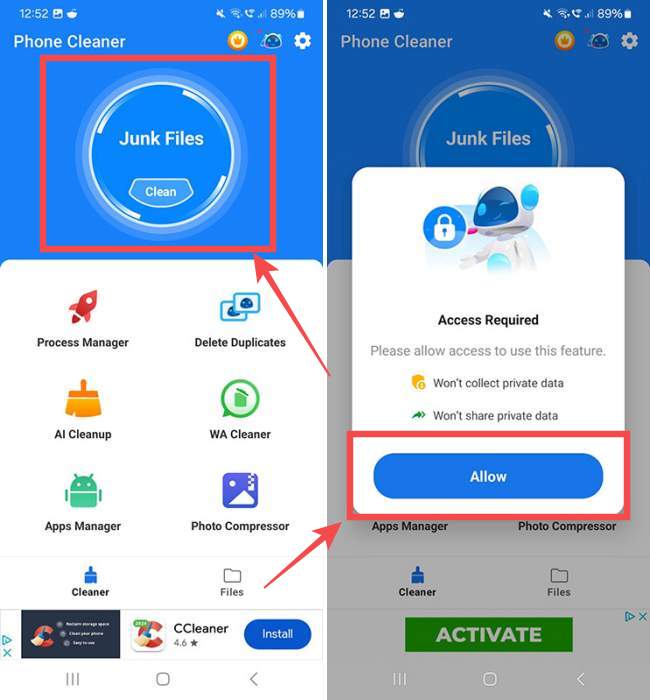
- The app will generate a list of obsolete files, residual ad junk, and temporary data. Hit the "Clean <MEMORY USED>" button at the bottom and wait for the process to complete.

- On the subsequent screen, locate the "Process Manager" option and tap "Go."
- Wait for the Process Manager to locate currently running but unnecessary tasks. Tap the "Task Killer" button to terminate these processes. This step significantly frees up RAM.
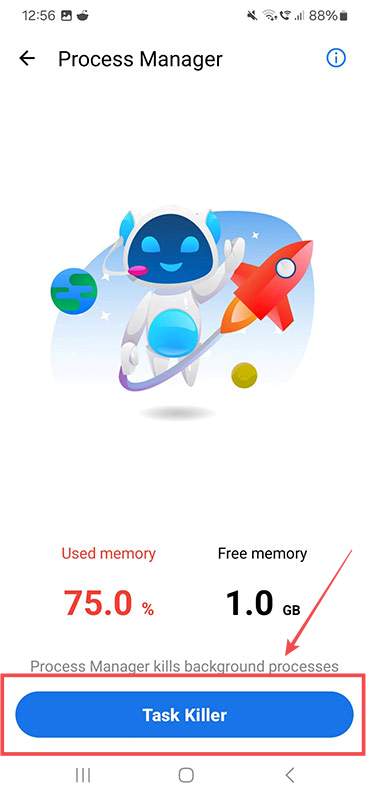
- The app will then prompt you for the final step, "Battery Manager." Tap "Turn On" to allow the app to control background battery usage, or tap the backward arrow to return to the main menu.

Section 2: Media Management Tools
1. Cleaning Duplicate Files
The AI Cleaner App uses its intelligence to efficiently scan your photo gallery and storage for exact duplicate image files, allowing you to quickly reclaim space without manual searching.
- Navigate to the app dashboard and tap the "Delete Duplicates" button.
- The app will scan your storage and display a list of all duplicated image files.
- Select the copies you wish to remove and tap "Delete" to finalize the action.

2. Compressing Photos
For Android devices that capture high-resolution images, photo compression is crucial for saving space. This feature reduces the file size while only minimally impacting image quality.
- Return to the app dashboard and select "Photo Compressor."

- The app will display all photographs in your gallery. Tap to check the images you wish to compress, then hit the "Next" button.

- You can select the "Auto" option for automatic compression, or tap "Customization" to manually adjust the final image width and height.
- Hit "Next" to start the process.

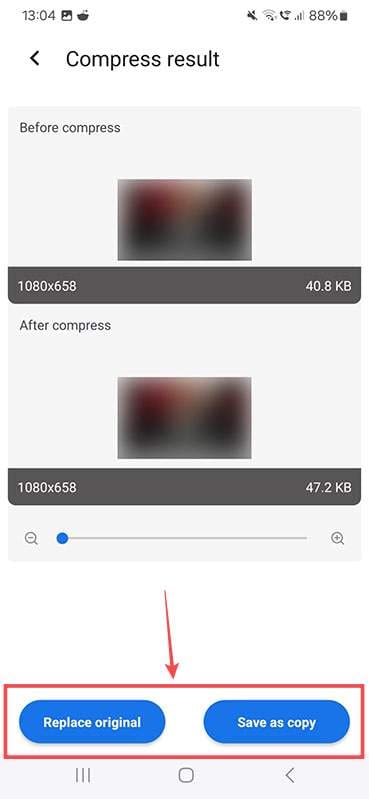
- Choose either "Replace Original" to overwrite the high-resolution photo or "Save as Copy" to keep both versions on your device.
3. Dedicated WhatsApp Cleaner (WA Cleaner)
WhatsApp media often consumes significant storage due to frequent sharing of photos and videos. The WA Cleaner provides a dedicated tool to manage this specific data.
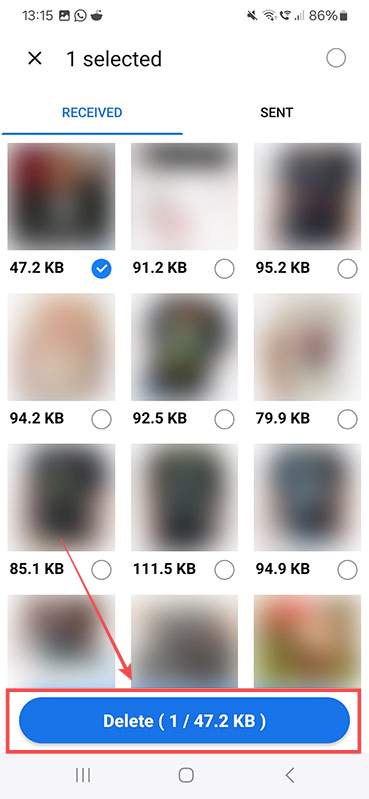
- Go to the app Dashboard and tap "WA Cleaner." The app will quickly sort and categorize all WhatsApp-related materials (images, videos, documents, etc.).
- View the materials organized by category. Tap the "View All" button next to the relevant category you wish to clean (e.g., "Images" or "Video").

- Select the media you wish to permanently delete by checking the circle icon underneath each item.
- Hit the "Delete" button to remove the chosen materials from your device storage.
Frequently Asked Questions (FAQ)
Is the AI Cleaner App safe to use on my Android device?
As with any third-party cleaner app, you should only download it from the official Google Play Store and review the privacy policy and requested permissions. Cleaner apps require deep access to your file system to function, which poses inherent risks. However, the functionality described (clearing junk, managing tasks) is standard for optimization tools.
What is the difference between Junk Files and Cache Files?
Cache Files are temporary data stored by apps to speed up loading times (e.g., loaded images or videos). They are generally safe to delete, but apps will simply rebuild them. Junk Files are broader and include obsolete residual files, leftover installation data, and advertisement files that are no longer needed by any application on the system. Cleaning both frees up space.
Posting Komentar untuk "How to Leverage the AI Cleaner App for Android Optimization and File Management"