
How to Find a Lost iPhone or Android Device Using Google Account
Mobile device storage is often plagued by unnecessary digital clutter, including residual junk files, excessive cached data, and accidental media duplicates. This accumulation of non-essential data not only consumes valuable available memory but also significantly degrades overall device performance, leading to slowdowns and decreased battery life. The AI Cleaner App leverages artificial intelligence (AI) to systematically identify, categorize, and eliminate this digital debris, offering a highly efficient solution for maintaining a clean and optimized Android phone.
Losing a mobile device, whether it's an iPhone or an Android, can be stressful, involving potential data loss and security risks. Fortunately, if your device was logged into a Google Account, you have access to powerful, platform-agnostic tools that enable remote tracking and management. This process leverages Google's built-in security features, allowing you to pinpoint the device's last known location, secure personal information, or even perform a factory reset. The following guide details the steps for accessing this functionality from both another mobile phone and a web browser.
Tracking a Lost Device Using a Google Account via Mobile Phone
If you have linked your primary Google Account to the lost device, you can track its location and remotely manage its security using another mobile phone.
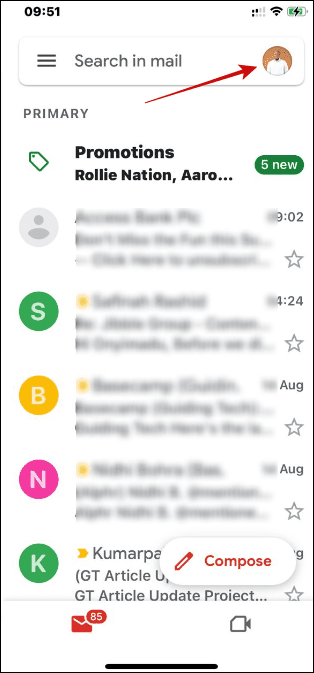
- Open the Gmail app on an accessible phone and log in using the same Google Account credentials that were used on the lost device.
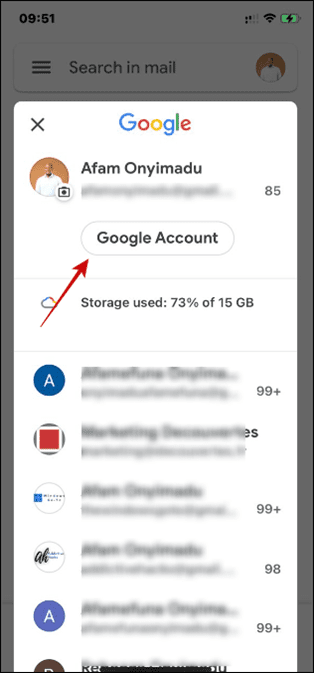
- Tap the profile picture icon, usually located in the top-right corner, and select Google Account.
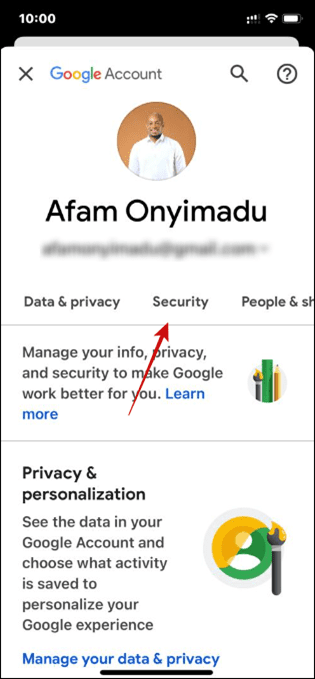
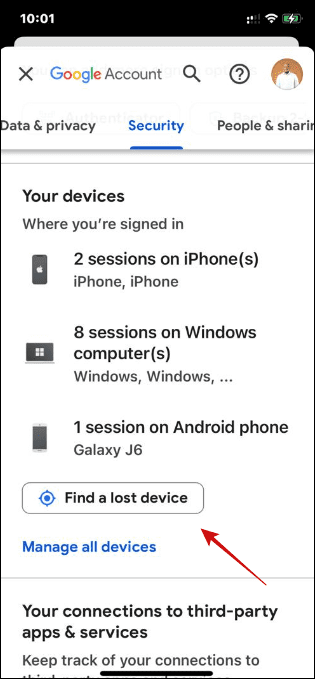
- Navigate to the Security tab. Scroll down to the Your Devices section and select the Lost a Device option.
- Select your lost device from the list of available options and click Find device. This action will launch a map interface displaying the device's current or last known location being tracked by Google services.
When using the "Find Device" feature on mobile, you will also be presented with several management options, including:
- Review Events: Displays a log of recent activity carried out on the device over the past 28 days.
- Try calling your phone: Provides options to initiate a call to the phone, including calls via Hangout services.
- Sign out on your device: Remotely signs your Google Account out of the phone, ensuring valuable personal information is inaccessible to unauthorized users.
- Reach out to the carrier: Facilitates contact with your mobile service provider to discuss disabling the SIM card or redirecting calls to a new number.
Tracking a Lost Device Using a Google Account via Web Browser
You can locate and manage your device using a desktop or mobile web browser via two primary methods. Note that the direct link method is primarily intended for Android devices.
Method 1: Direct Access to Find My Device Service (Android Only)
For Android devices, Google provides a dedicated web portal for device tracking.
- Launch your web browser and navigate to the Google Find My Device web address.
- Review the map interface to pinpoint the phone's current position.
- Select one of the security options as required:
- Play sound: Activates a sound on the device for five minutes to help locate it if it is nearby.
- Secure device: Remotely locks the device and allows you to display a custom recovery message on the lock screen.
- Factory reset device: A measure of last resort that completely erases all data on the device.

Method 2: Via the Google Account Security Panel
This method works for all devices connected to the Google Account, including iPhones where the Gmail app is used.
- Log into your Google Account via the Gmail platform.
- Click the Google apps (waffle menu) option in the top right corner and select the Account icon.

- Click the Security tab in the left-hand navigation pane, then locate and click Find a lost device on the right-hand panel.

- Select your lost device from the displayed options.

- Inspect the map interface to determine the phone’s current position.
- Select one of the security options as required:
- Play sound: To get a five-minute sound to help you locate the exact spot your phone is in.
- Secure device: It will remotely lock the device and protect your data.
- Factory reset device: This drastic measure will erase all data on your device.
Frequently Asked Questions (FAQ)
What conditions must be met for Google to locate my lost device?
For Google's Find My Device service to work, the lost device must be powered on, connected to mobile data or Wi-Fi, have Location Services enabled, be visible on Google Play, and have the Find My Device feature (or a similar Google service) turned on. If the phone is off or has no internet connection, the service will only display its last reported location.
Can Google's Find My Device locate a lost iPhone?
Google's Find My Device is primarily designed for Android devices. While you can see your iPhone listed under "Your Devices" in your Google Account security settings if you were logged into Google apps (like Gmail or Chrome) on the iPhone, the system will redirect you to Apple's Find My service, which is the native and most effective way to track a lost iPhone.
What is the difference between "Secure device" and "Factory reset device"?
Secure device is a temporary measure that locks the screen, signs out of your Google Account, and allows you to display a custom contact message, giving you a chance to recover the phone. Factory reset device is a permanent, irreversible action that wipes all data from the phone's internal storage, used only when you believe the phone is unrecoverable and the data must be protected.
Posting Komentar untuk "How to Find a Lost iPhone or Android Device Using Google Account"