
How to Use Freepik AI Image Generator
Freepik, initially known as a vast repository for royalty-free visual assets, has successfully adapted to the generative AI landscape by introducing a powerful AI image generator. This platform allows both creative professionals and novices to transform text descriptions into high-quality visual content using advanced models like F Lite. Integrating creation, customization, and editing tools, Freepik provides a versatile, middle-ground solution for users seeking fine control over their generated images without the complexity of highly specialized AI art tools. This guide outlines the steps required to navigate and leverage Freepik’s comprehensive image generation features.
How to Use Freepik AI Image Generator
What Does Freepik Offer Users?
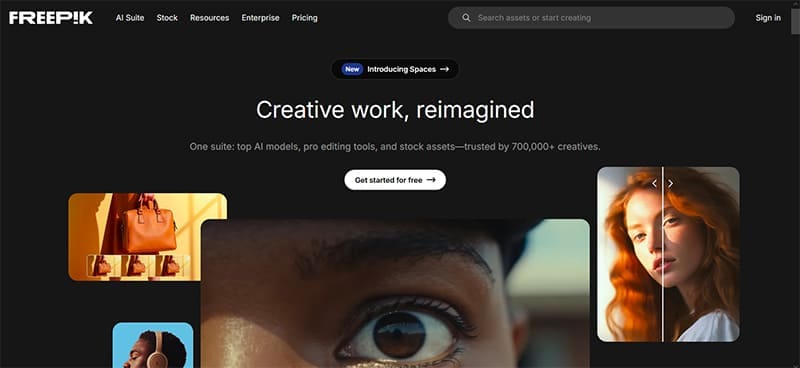
Beyond its traditional offering of royalty-free images, the Freepik AI image generator provides significant value:
- Advanced Models: Freepik utilizes highly popular and advanced text-to-image models, including their proprietary open-source model, F Lite.
- User-Centric Interface: It features an easy-to-use interface coupled with extensive input options for style control, image uploads, special effects, and post-processing adjustments, catering to both experts and novices.
- Versatile Generation: The platform supports generating multiple images from a single prompt and offers robust editing capabilities for refinement.
- Compatibility: It is compatible with PCs, smartphones, and API integration.
While Freepik offers a solid balance of control and accessibility, access to features is credit-based. Generating more than 20 images per day requires a subscription, starting at $8.50 per month. Premium tiers unlock better models, more styles, and increased customizability.
Step-by-Step Guide to Using the Freepik AI Image Generator
If you prefer to explore the features before subscribing, the free version is available, though a user profile creation is still mandatory.
- Enter Your Prompt: The tool defaults to the Pikaso Image Generator interface. Input your detailed text prompt into the provided dialog box. You can also utilize the *Auto Prompt* feature for idea generation or provide a custom seed.

- Select Model: Choose the desired text-to-image model from the dropdown list. Model availability may be restricted depending on your subscription tier (free or premium).
- Choose Image Style: Select your preferred aesthetic style. The platform offers various built-in styles, and you can upload a reference image for style inspiration.
- Add Character Reference (Optional): If you intend to use a recurring character, you have the option to choose or upload a reference image.
- Configure Generation: Specify the number of images to be generated and the desired aspect ratio. Click the Generate button to begin processing.
- View and Edit: Once generated, view the resulting images. To make specific modifications, click on an image and select Edit.

- Apply Specific Changes: The editing dialog box allows for targeted modifications. Options such as *Retouch*, *Upscale*, and other specific adjustments will appear in boxes below the image.

- Finalize Edits: Click the Upload button (represented by an arrow icon) to apply the requested changes to the image.

- Save or Download: From the final view, you can save the image to your account, download the finalized asset, or continue editing it further.
Frequently Asked Questions (FAQ)
What is the difference between Freepik's royalty-free images and its AI-generated images?
Freepik's original content is a library of pre-made, royalty-free images (photos, vectors, illustrations) created by human designers that users can download. The AI-generated images are new assets created on-demand based on a user's text prompt, offering unique, personalized visuals that are not part of the standard library.
Can I use the images generated by Freepik AI for commercial purposes?
Yes, images generated through Freepik AI are generally licensed for commercial use, provided you adhere to Freepik's terms of service and licensing rules, which typically require a subscription for high-volume or professional use. Always review the specific license associated with AI-generated content on their platform.
What is the "Custom Seed" feature used for?
The Custom Seed is a unique numerical value that controls the initial noise pattern from which an AI image is generated. By using the same seed number with the same prompt and settings, you can reproduce an identical image or create minor, controlled variations, which is essential for maintaining consistency across a project.
Posting Komentar untuk "How to Use Freepik AI Image Generator"