
Guide on How to Insert Bullet Points in Google Sheets
While creating and managing lists in productivity software, bullet points are essential for neatly separating and organizing information. Although bullet points are a native feature in word processors like Google Docs, their implementation in Google Sheets—a spreadsheet application—requires specialized methods. Users on desktop platforms like Windows, Mac, and Chromebooks, as well as mobile devices running iOS and Android, need clear steps to correctly insert these symbols. This guide provides a comprehensive breakdown of the most efficient techniques, ranging from keyboard shortcuts and formulas to multi-line list creation within a single cell, ensuring your data remains organized and readable.
Since Google Sheets does not have a dedicated "Bullet Point" formatting button, you must use one of three main methods to insert them on Windows, Mac, and Chromebook devices.
Desktop Methods (Windows, Mac, and Chromebook)
Method 1: Using the Keyboard Shortcut
Using the keyboard shortcut is generally the fastest way to manually insert a bullet point character into a cell.
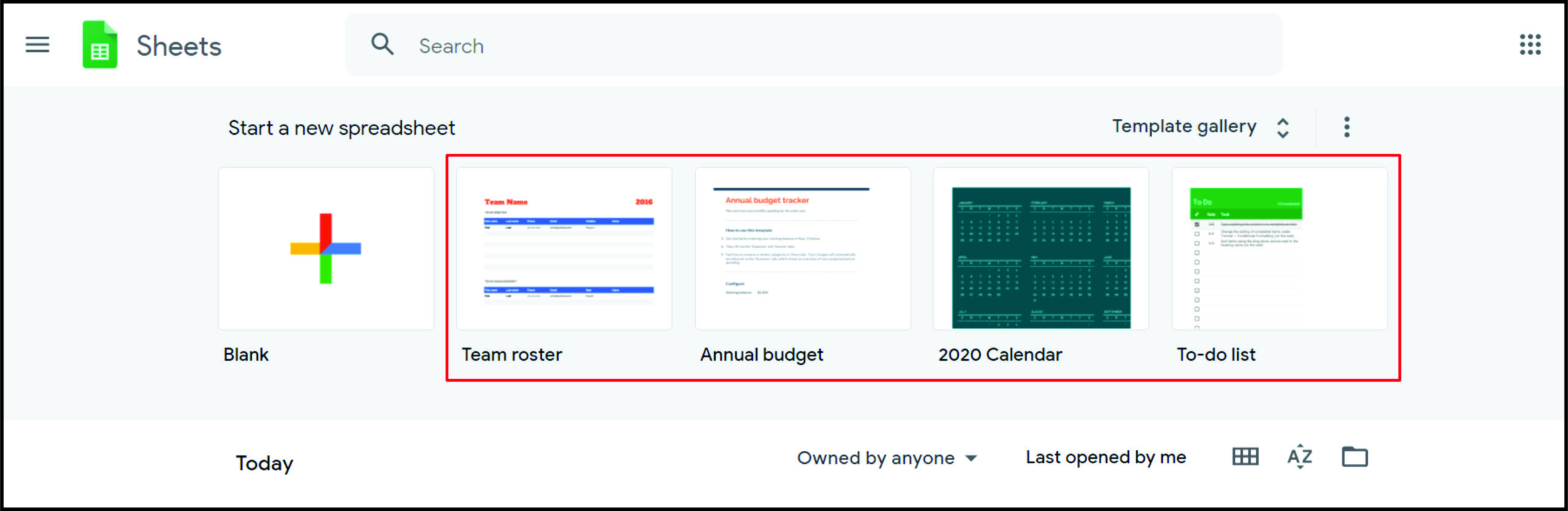
- Open Google Sheets on your computer.
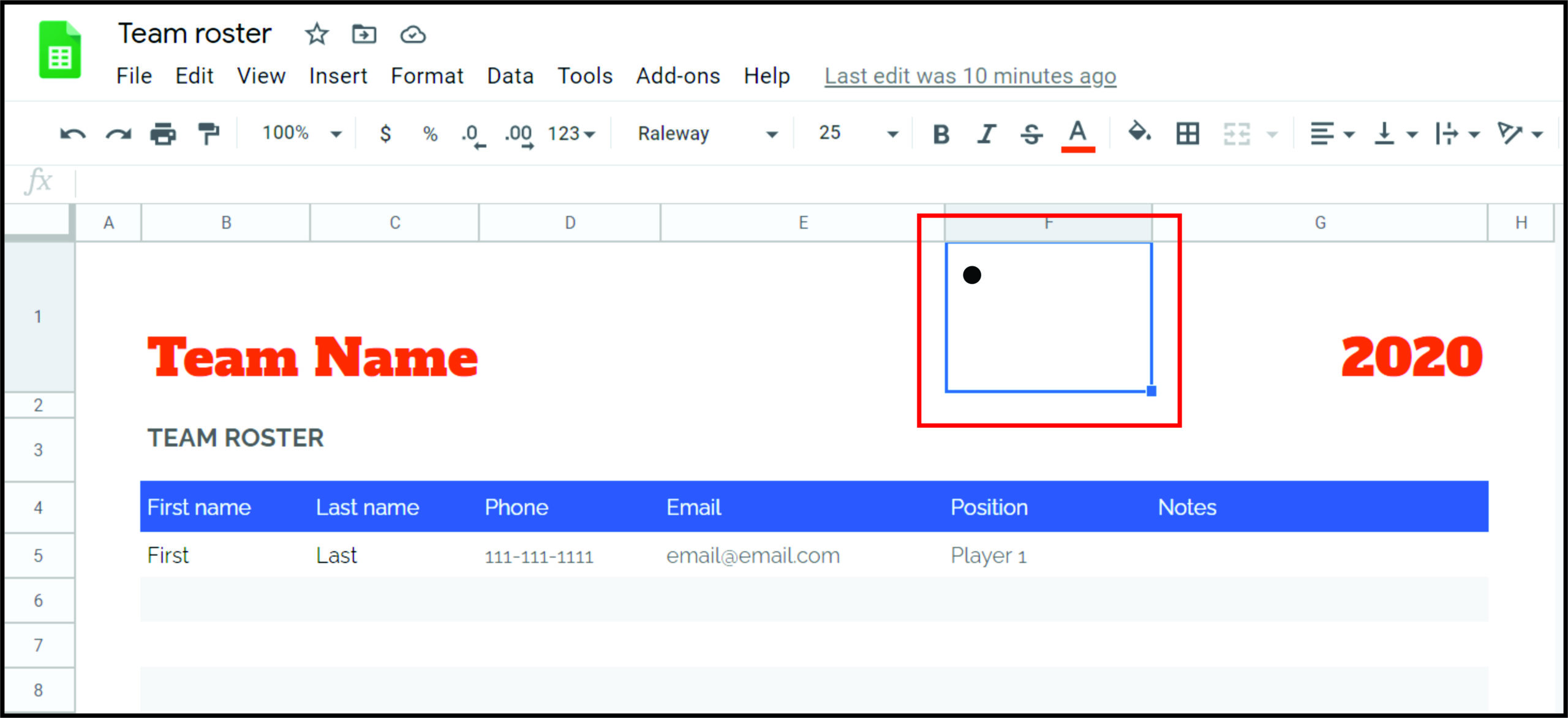
- Select the target cell.

- Double-click the cell or press F2 to enter edit mode.

- Use the following shortcuts:
- Windows: Press and hold Alt, then press the number 7 on the numeric keypad (Alt + 7).
- Mac: Press and hold Option, then press the number 8 (Option + 8). *Note: The source suggests Alt+7, but Option+8 is the standard Mac shortcut for the bullet character (•).*

- The bullet point (•) will appear in the cell.
Method 2: Using the CHAR Function
The CHAR function converts a numeric ASCII or Unicode character code into the corresponding character. For a standard black circle bullet, you can use the Unicode code 9679.
- Select the cell where you want the bullet point to appear.
- Type the following formula and press Enter:
=CHAR(9679)
The cell will display the solid bullet character (•).
Method 3: Copy and Paste Bullet Symbols
You can also copy bullet characters or other symbols directly from another source (like this article or a word processor) and paste them into your desired cell in Google Sheets. Useful symbols include: •, ○, ►, and ✓.
- Copy the desired bullet symbol (e.g., •) from any source.
- Open Google Sheets and select the target cell.
- Enter edit mode (double-click or F2).
- Use the standard paste command:
- Windows: Press Ctrl + V.
- Mac: Press Command + V.

Creating Multi-Bullet Lists within a Single Cell
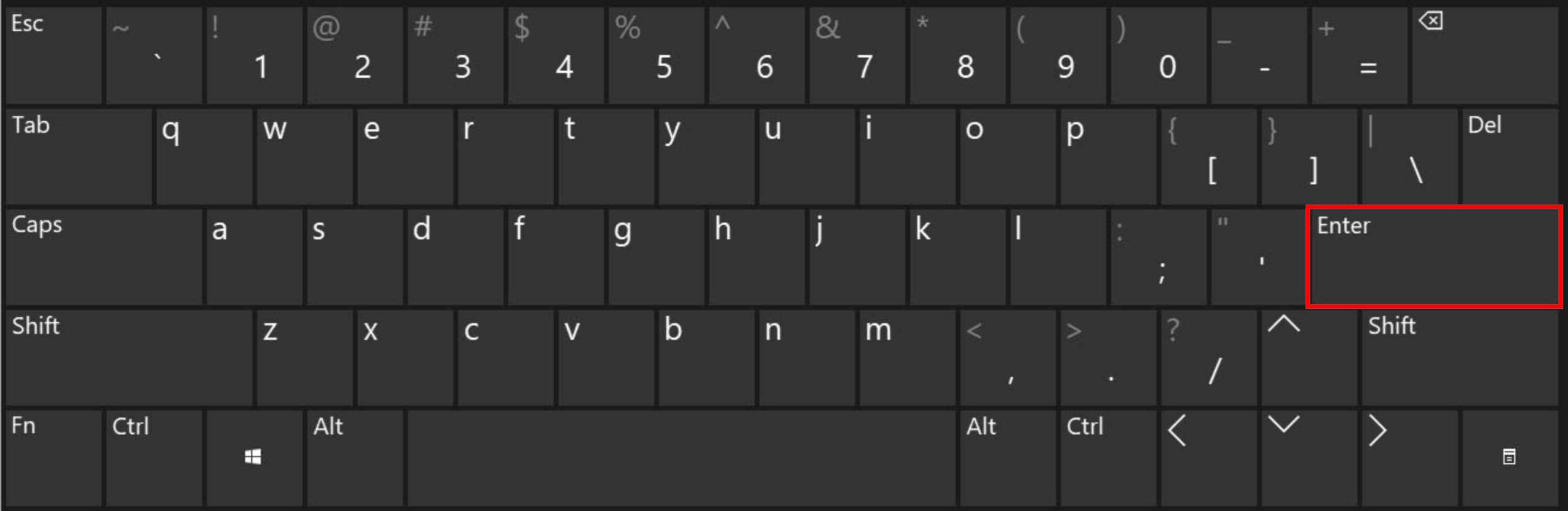
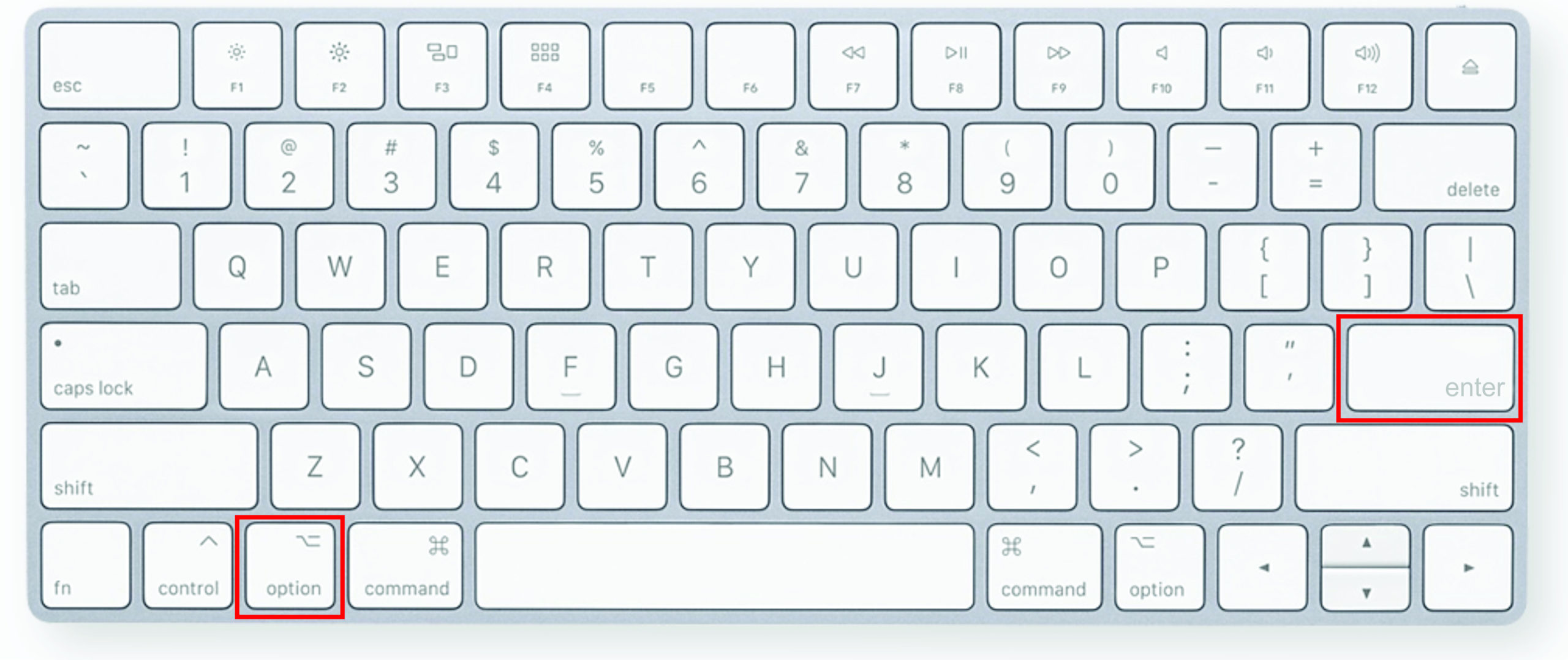
Unlike a word processor, pressing Enter in a Google Sheets cell confirms the input and moves the cursor to the next cell. To create a list with multiple lines and bullet points within the *same* cell, you need to use an alternate shortcut for a line break.
- Double-click the target cell to enter edit mode.
- Insert your first bullet point (using CHAR, the shortcut, or paste).
- Type the text for the first list item.
- To start a new line within the same cell, press:
- Windows: Alt + Enter.
- Mac: Option + Enter.
- Insert the next bullet point on the new line, followed by the text. Repeat as needed.
Duplicating Bullet Points for a List
If you need to quickly add the same bullet point formula or character to a long list of cells in a column, use the fill handle (the small square) to drag the formula down.
- Ensure the first cell contains your bullet point or the `=CHAR(9679)` formula.
- Click on the cell. Locate the tiny square (fill handle) in the bottom right corner of the selected cell.

- Click and drag this handle downwards over the cells where you need the bullet points to appear.
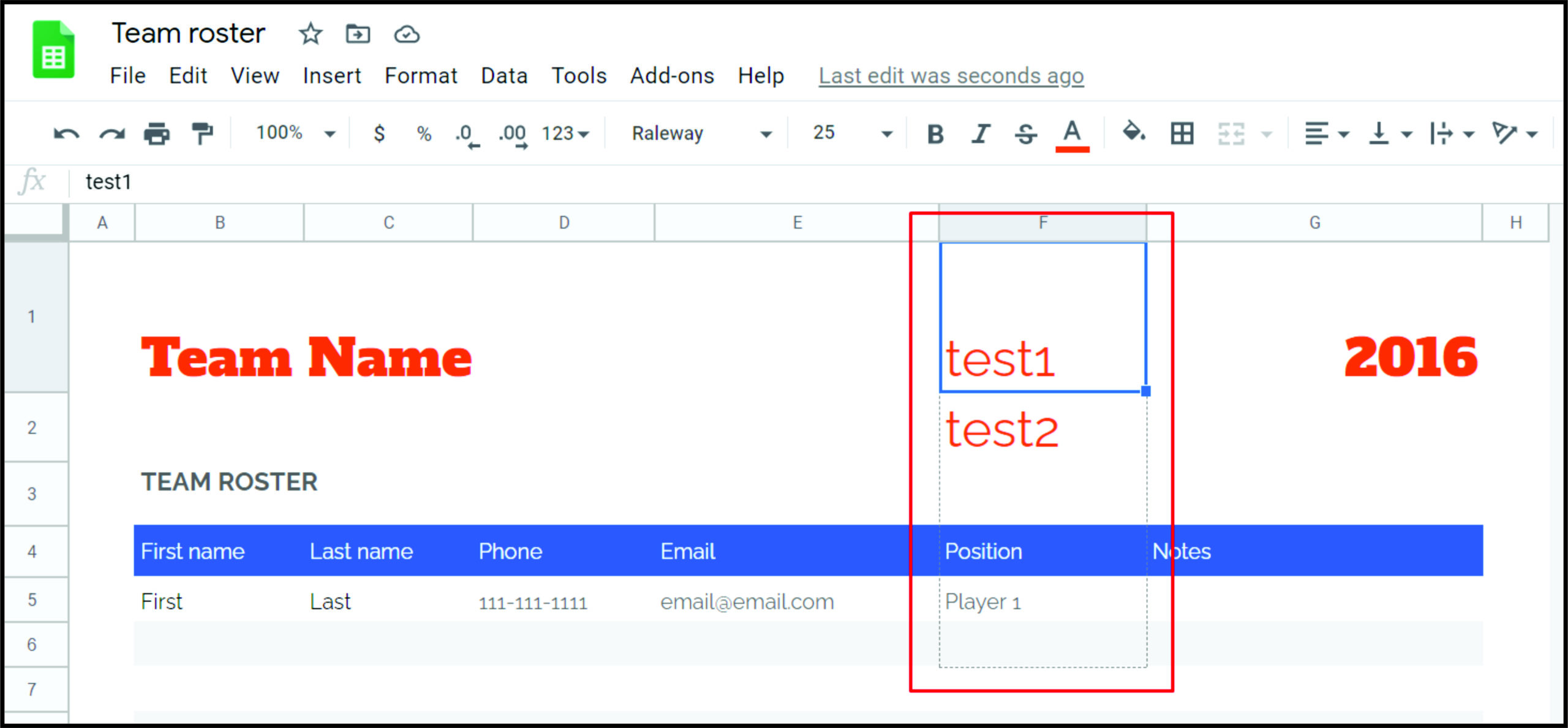
- The bullet point or formula result will automatically populate all selected cells.
Mobile Methods (iOS and Android)
For the Google Sheets mobile application, the CHAR function is the most reliable method to insert a bullet point.
- Open the Google Sheets app on your Android or iOS device.

- Double-tap the cell to activate the formula/text input area.

- Type the CHAR function exactly: `=CHAR(9679)`.

- Tap the checkmark symbol (or the equivalent confirmation button on your mobile keyboard) to execute the formula.

The bullet point will now be visible in the selected cell.
By utilizing the CHAR function, keyboard shortcuts, or simple copy-paste methods, you can effectively integrate bullet points into your Google Sheets data. These techniques allow for enhanced organization and readability, transforming complex data arrays into structured, easy-to-digest lists. Furthermore, consider personalizing the presentation by adjusting the bullet character size or color to match your spreadsheet's aesthetic.
Frequently Asked Questions (FAQ)
Can I combine the CHAR function with other text?
Yes, you can easily combine the CHAR function with text using the concatenation operator (&). For example, =CHAR(9679) & " My Item" will display the bullet followed by your text in the same cell. You can also use the ARRAYFORMULA to apply this across a range: =ARRAYFORMULA(CHAR(9679) & " " & A1:A10).
How do I remove the bullet point once it's inserted?
If you used a keyboard shortcut or copy-paste, simply double-click the cell, select the bullet character, and delete it. If you used the CHAR function, you must delete the entire formula (e.g., =CHAR(9679)) from the cell, which will remove the resulting bullet character.
Can I use symbols other than the standard bullet point (•)?
Yes. The CHAR function relies on Unicode, allowing you to use many different symbols. For example, =CHAR(9745) produces a checkbox (✓), =CHAR(9675) produces a hollow circle (○), and =CHAR(9658) produces a triangle arrow (►).
Posting Komentar untuk "Guide on How to Insert Bullet Points in Google Sheets"